
The Ratings tab provides a detailed look at the ratings and related information for each runner.
Due to the amount of information it cannot neatly fit onto one row for each horse, so there are 2 views for this tab. The top view is ratings information and the bottom view is the ratings calculations.
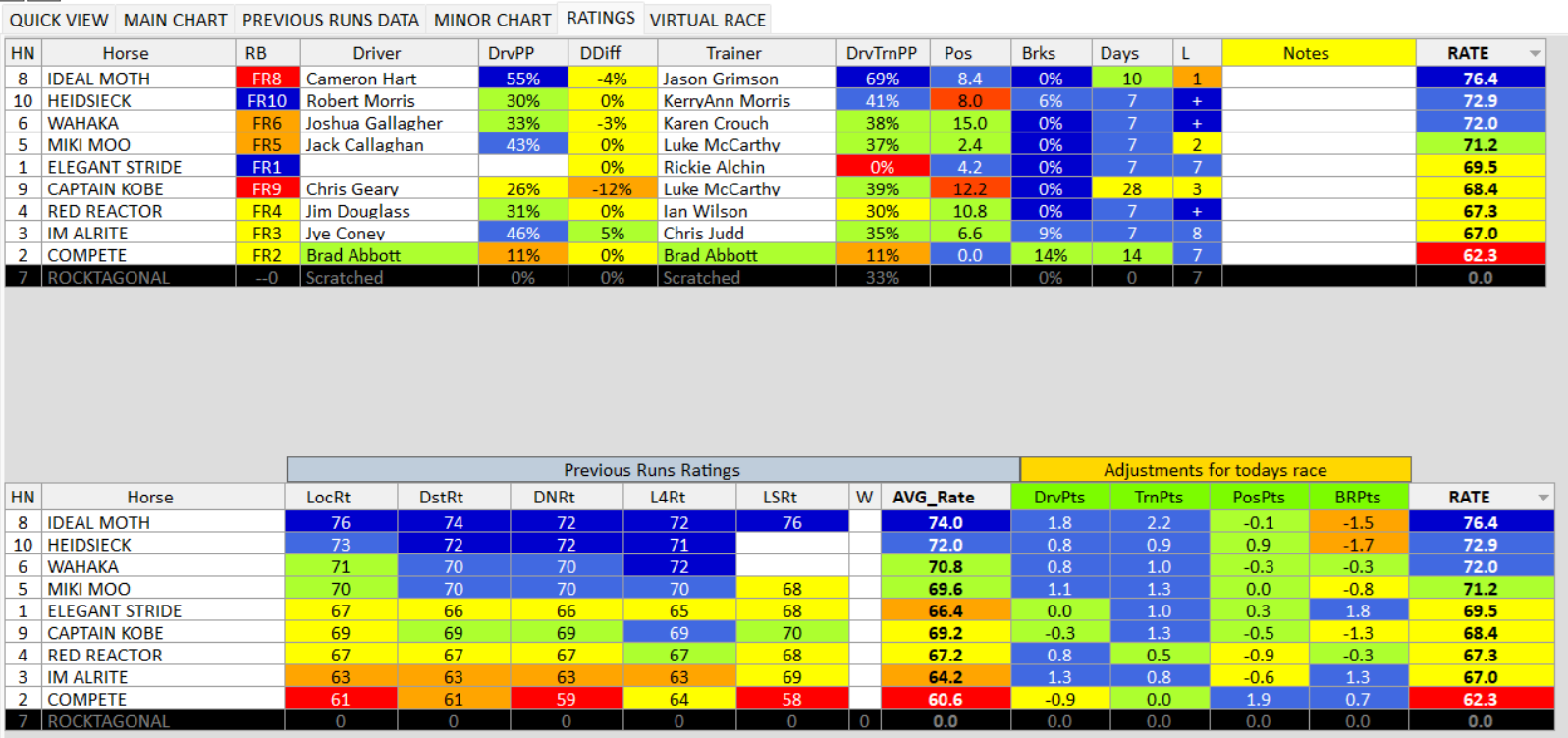
Rating Information Table:
This view provides detailed information on each runner. A lot of this information isn’t contained on any other tab. Each column provides different and useful information. Hover over any heading and it will provide a brief description of the column data. A few of the columns are explained below:
Driver and Trainer columns – Note if the Trainer is driving the horse both these columns will be highlighted in green so these runners are easily identified.
DrvPP column – This is today’s drivers percent of places based on their previous drives in the last 500 days.
DDiff column – This column looks at today’s driver percent place against the previous driver (last race) percent place and compares them. This is looking for horses with much improved driver or less skilled driver on them today.
DrvTrnPP column – This column shows how the combination of the driver / trainer has worked in the past. It shows the percent place for runs where this driver has driven for this trainer in the last 500 days.
Pos column – This is the current predicted position for each horse. The number represents the predicted location in distance from the leader at the 804m marker and the colour indicates how wide the horse is predicted to run.
If you hover over these cells it will display the full information (eg 10m, 1 wide). You can change the predicted positions within the Virtual Race.
Brks column – Shows the percent of breaks this horses has had in the last 500 days. Breaks are only ones that meet certain criteria. In the previous runs data they will have a tick in the Brk column beside the runs that were breaks.
L column – This is the number of times a horse has run at today’s track. If they have raced more than 9 times at the location this column will display a “+”. This column is hany to identify horses that aren’t experienced on this track.
Notes column – This is where you make you own notes for each horse in this race. The notes created here are not permanently saved. They are only used in reports for this analysis. Once the analysis is removed from the program, these notes are not saved.
To make a note you need to double click in the note column on the row for the horse you want to make a note on. You will be prompted to enter your comment which will then display in the table and in the reports.
Previous Runs Ratings Table:
The view on the bottom of this tab shows how the ratings are formed.
Ratings are calculated based on previous runs. The runs are grouped into the categories below and the average is taken. As you change your selected runs these ratings will also change.
The groups are:
LocRt – This is the rating average for previous runs at the same location or track. It only takes the last 3 runs at the location to form this average.
DstRt – This is the rating average for previous runs over a similar distance. It groups all runs that are within 150m more or 150m less of today’s distance.
L4Rt – This is the rating average for the previous 4 runs. If you remove any of these 4 runs from your analysis is uses the average of however many are left within the last 4.
LSRt – This is the last start rating. Historically this is one of the best indicators of next run performance.
W – This column shows horses with last start wins. If a horse has a string of first place it counts the number of wins they have had in a row. If it is blank it means they were not a winning in their last start. Additions are made to the average ratings for last start winnings.
AVG_Rate – This is simply the average of the ratings above. You can filter on this column to show who has the best ratings before any adjustments are made.
Adjustments for todays races:
This is where you can add your personal touch to the ratings. Each adjustment is explained below. You can manually change every value in this area with the exception of the PosRt. You can also decide how much you want to apply all of them to your rates.
DrvPts – Driver points are adjustments made for today’s driver. The full value is pre-calculated based on driver percent place and driver percent difference.
TrnPts – This adjustment is pre-calculated for each trainer based on the trainers success in the previous 500 days.
PosPts – This adjustment is fixed on this screen as it is calculated based on the horses predicted position and width in running today, compared to previous runs. It will change if you move horse position in the virtual race.
BRPts – This adjustment is for today’s row and barrier compared to the last 3 previous runs.
Change how the adjustments are used in the calculation
For every race you can alter how much you want these adjustments to vary the ratings. To do this you click on the column heading for any of the adjustments and the following popup menu will display:

When you select from this menu the adjustments will be recalculated as follows:
Off – The adjustments for that column are set to zero.
Medium – The adjustments are set to 1/2 the full value.
Full – The full adjustment is applied.
The colour of the heading will show you how the adjustments have been applied for that race. You can change this for every individual race.
If you go to the User Setup menu on the main page you can also adjust your default setting for these and it will apply this to all races when you import them.
Manually change individual adjustment values
If you disagree with any individual adjustment this can also be changed.
To do this you need to double click in the cell you want to change and the following prompt will appear:
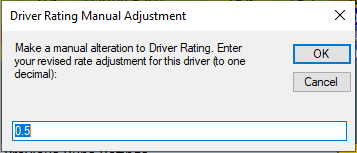
Enter a new valid number in here and it will be changed for that cell when you click ok. This can be handy when you think a driver is unduly rated low.
RATE
This is the cumulation of your work for the race. It uses the average rate plus or minus all adjustments to calculated your rating for each horse.
Sorting columns
If you click on most of the column headers it will sort by that column. Note the Ratings information and the runners list are connected. When you sort any of these views it will sort the others the same way.